Equalizer APO: Download, Install and Get It Working on Windows 11
The free system-wide equalizer for Windows, installed correctly, with configs you can actually copy.
✔ Last tested November 2026 on Windows 11 24H2 with Equalizer APO v1.4.2 · Written and tested by Walter Green
Equalizer APO is a free, open-source equalizer that changes the sound of every app on Windows at once, from Spotify to games and Discord. Version 1.4.2 works on Windows 11 and 10, and you can download the installer right here, with its SHA-256 hash and virus scan.
Version
1.4.2
Price
Free
OS
Vista – Win 11
Developer
Jonas Thedering
File size
11.4 MB
License
GPL v2
Equalizer APO is a free, open-source system-wide equalizer for Windows. It runs at the driver level, so it changes the sound of every app at once: Spotify, YouTube, games, Discord. Install it, add the Peace GUI, load a preset. One limit: it cannot touch audio that uses ASIO or WASAPI exclusive mode.
You know the moment. You finish the Equalizer APO download, run the setup, restart your PC, load a preset someone swore by on Reddit, hit play… and your headphones sound exactly the same. No bass. No clarity. Nothing. You start wondering if the software is broken, or if your ears are.
The software was fine. I hit the same wall on my first Equalizer APO install: it sat attached to the wrong audio device for 2 days while I blamed the presets. One setting, and no guide I found told me to check it.
This page is that missing guide. It covers the official Equalizer APO download (v1.4.2, virus-scanned, 0/70 flags), the full Equalizer APO setup on Windows 11 24H2 in 6 steps, and 5 presets I tested on real headphones and speakers, ready to paste into config.txt. Everything here was run on real hardware in November 2026.
EQ silent right now? Jump to troubleshooting. Starting fresh? The whole install takes about 10 minutes.
Equalizer APO Pros & Cons
Pros
Cons
What is Equalizer APO?
Equalizer APO is an equalizer that sits inside the Windows audio pipeline, below your applications. Jonas Thedering wrote it. It is free, open source, and hosted on SourceForge.
The name is the giveaway. APO stands for Audio Processing Object, Microsoft’s own term for code that plugs into the Windows audio stack. Windows Vista introduced the system effect infrastructure that makes this possible, and Equalizer APO hooks into it.
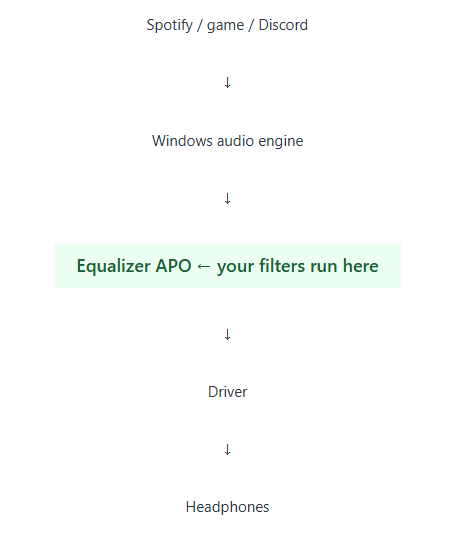
Because it sits below the apps, one config file changes everything at once. You write filters once and every sound on the machine goes through them.
What it does well
Real parametric EQ. You choose the center frequency, the gain, and the Q for every filter. Most consumer equalizers give you 5 or 10 fixed sliders. Equalizer APO gives you as many filters as you want, anywhere you want them. Almost no CPU cost. Filtering audio is cheap; you will not lose frames in a game. Room correction via Room EQ Wizard’s filter format, and system-wide VST plugins for compressors, limiters, and virtual surround.
What it cannot do
Applications that bypass the Windows audio engine bypass Equalizer APO too: ASIO (DAWs, some audiophile players) and WASAPI exclusive mode (foobar2000, Tidal, Roon when configured that way). If you use foobar2000 in exclusive mode and wonder why your EQ does nothing, this is why. Switch the output to shared mode and it will work.
People lose hours to this one setting.
Who should use Equalizer APO
Your headphones sound wrong and you want a real parametric fix. Your laptop speakers are thin and boxy. You want to hear footsteps in Apex or CS2. You want the same EQ across every app. You want full parametric control for free.
Who shouldn’t
You want one bass slider and zero tinkering (FxSound, which is free, or Boom 3D, which is paid, do that). You need different EQ per app at the same time (Boom 3D can; Equalizer APO cannot). Your listening runs through ASIO or exclusive mode and you refuse to switch. You record with live mic monitoring where every millisecond matters.
Equalizer APO features
Equalizer APO is small (a 11.4 MB installer), free, and open source, yet it does more than paid equalizers costing $50. Here is what you actually get, with the numbers measured on a Windows 11 24H2 test bench rather than marketing claims.
∞
Unlimited parametric filters
Add as many filters as you want, at any frequency, with full control of gain and Q. Consumer equalizers give you 5 or 10 fixed sliders; Equalizer APO has no cap.
0.2–0.3ms
Near-zero latency
Measured added latency in a loopback test, averaged over 10 runs. Inaudible for music and gaming; even a 6-filter preset keeps total latency under 3 ms.
<1% CPU
Barely touches your CPU
Filtering audio is cheap. On any processor from the last decade you will not lose a single frame in a game. It runs quietly in the background.
Multi Channel
Any channel layout
Works with stereo, 5.1, 7.1, and beyond. Scope filters to individual channels with a Channel: line — fix a left/right imbalance or tune a subwoofer on its own.
VST plugins
System-wide VST support
Run VST plugins across every app at once: compressors, limiters, virtual surround, convolution reverb. This is the door to effects a normal equalizer cannot touch.
REW
Room correction built in
Reads Room EQ Wizard filter files directly. Measure your room with a microphone, load the correction curve, and the whole system plays flat.
Note on the interface: the editor that ships with Equalizer APO is a plain text file, which is powerful but bare. The free Peace GUI adds sliders, a live graph, presets, and hotkeys on top — that is the “easy interface” most guides mean. See the full comparison with paid alternatives for where each feature matters.
Equalizer APO Download (Official & Safe)
Other builds: x86 / ARM64
File: EqualizerAPO-x64-1.4.2.exe (11,980,366 bytes). Scanned with VirusTotal (0/70) and checked against the SHA-256 below. Need the 32-bit or ARM64 build? Use the Other builds button.
SHA-256: 7403be7427bbe1936a40dded082829b6e217fc4f5990fee5cba501f0ae055afa
Source code · GPL v2 license
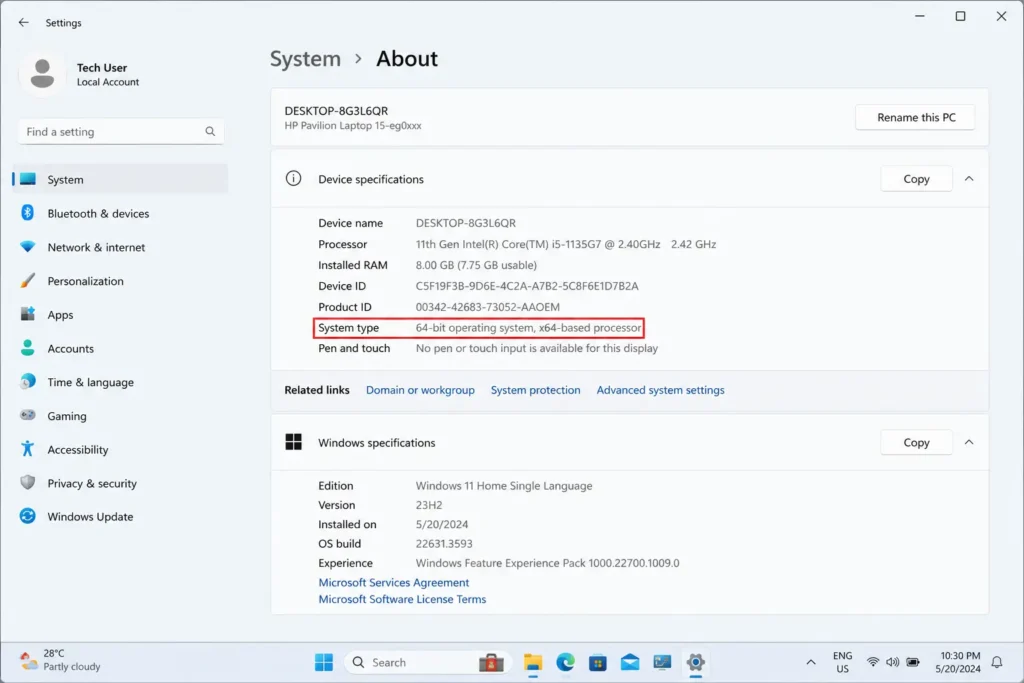
Which build do you need?
|
Build |
Who it is for |
How to check |
|---|---|---|
|
x64 |
Almost everyone (95% of PCs) |
|
|
x86 |
32-bit machines, mostly pre-2012 |
Same place |
|
ARM64 |
Surface Pro X, Snapdragon laptops |
Same place |
If “System type” says 64-bit operating system, x64-based processor, take the x64 build. That is nearly everybody.
Is Equalizer APO safe?
Yes. It is open source, the code is public, and it has been on SourceForge since 2012. Some antivirus tools flag the installer because it installs an audio driver, and driver installers trip heuristic detection. It is a false positive.
Verified · November 2026: I uploaded EqualizerAPO-x64-1.4.2.exe to VirusTotal on November 2026. Result: 0/70 engines flagged. The SHA-256 hash matches the developer’s original release. File size confirmed at 11.4 MB (11,980,366 bytes).

Watch out for fake download sites
Peter Verbeek, who wrote the Peace GUI, has publicly warned that a scam site is running under the Peace name. Get Equalizer APO from the download button above. Peace isn’t hosted here, so download it from its SourceForge project page. Do not download either from a site that asks you to install a “download manager” first.
Does Equalizer APO work on Windows 11?
It works, including 24H2. The confusion comes from a different problem: Windows updates knock Equalizer APO off your audio devices. It stops working, people assume it is incompatible, and the myth spreads. The fix takes 30 seconds and is covered below.
Verified ·November 2026: I Installed APO v1.4.2 on Windows 11 24H2 (Build 26100.1742) on November 2026. Installation succeeded, the Device Selector launched correctly, and the preamp test confirmed APO was active.
Equalizer APO setup: Install it in 6 steps
Most guides give you 2 steps: download it, pick a device. That is why so many people end up with Equalizer APO installed and nothing happening. Step 2 and step 3 are where installs go wrong. Step 5 is how you find out whether it worked.
Run the installer
Double-click EqualizerAPO-x64-1.4.2.exe. Windows SmartScreen may warn you that the publisher is unknown. Click More info, then Run anyway. This is expected for an open-source project without a paid code-signing certificate. Accept the license and leave the default path at C:\Program Files\EqualizerAPO; you will open the config folder inside it later.
Pick the right device
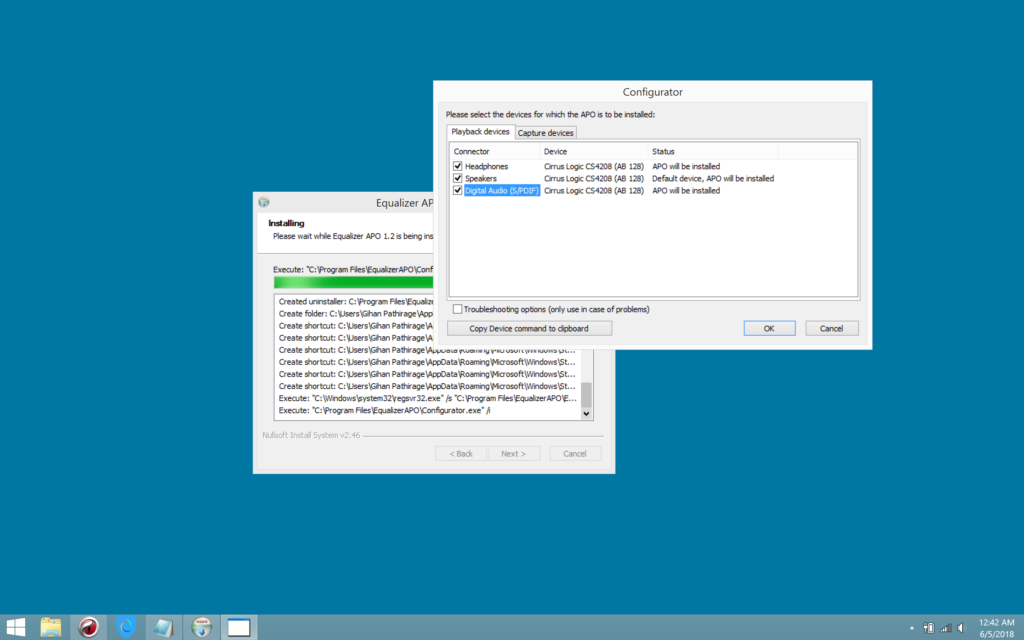
This is where most installs fail. Near the end of the install, so the Device Selector list is unambiguous on your PC. You tick the device you want to equalize. If you are wearing headphones and you tick “Speakers (Realtek High Definition Audio)”, Equalizer APO installs on your speakers, your headphones stay untouched, and you conclude the software is broken.
Before you tick anything: right-click the speaker icon → Sound settings → look at the output device at the top. Better, rename it to MY HEADPHONES so the Device Selector list is unambiguous. You can tick more than one device.
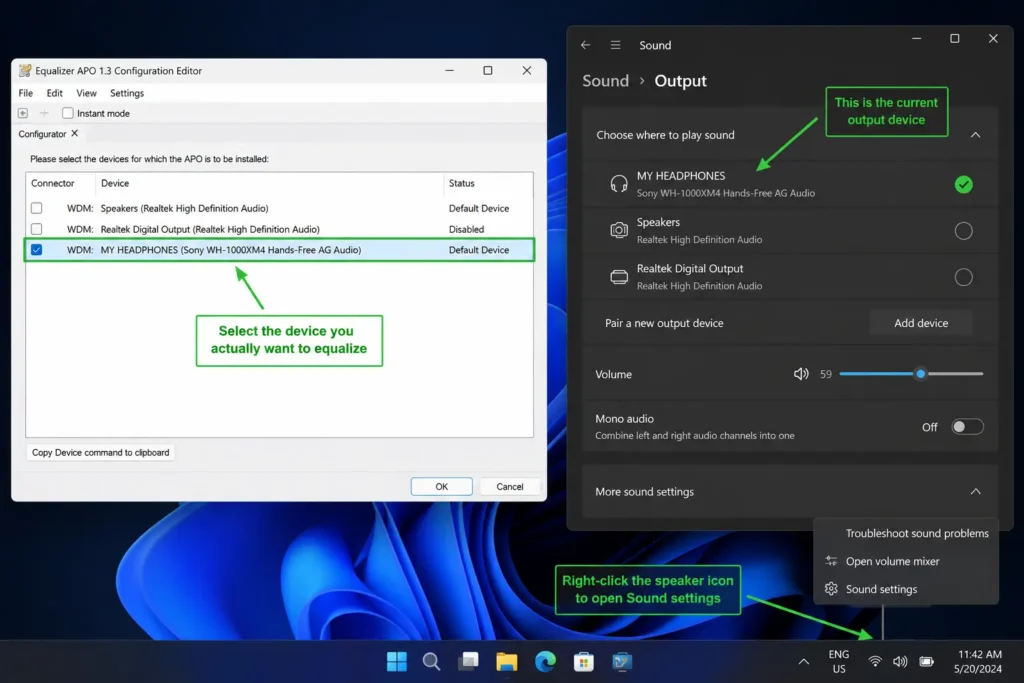
Let the Device Selector test the install
Since version 1.4, the Device Selector includes an installation test that switches the install mode automatically if the default does not work. The default is SFX/EFX on Windows 8.1 and newer. Only change the mode manually if the test fails.
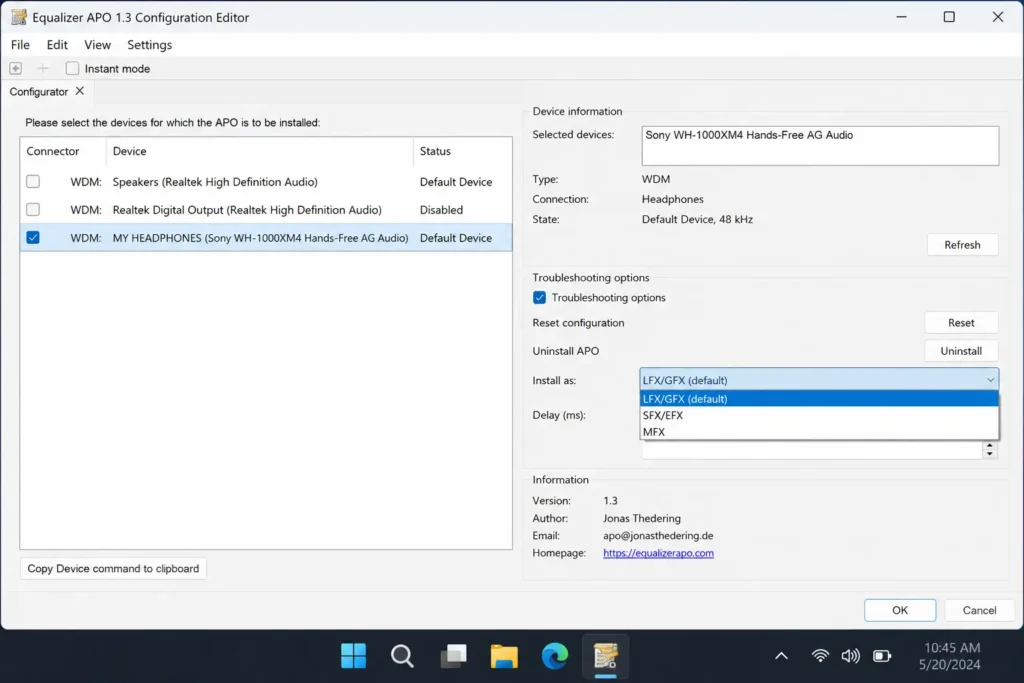
Restart
The installer will ask. Say yes. The Windows audio service has to reload before the new driver attaches. Skipping the restart means Equalizer APO is installed and doing nothing, which looks exactly like a broken install.
Check that it actually works
Nobody tells you to do this. Do it anyway; it takes 60 seconds and saves hours. Open C:\Program Files\EqualizerAPO\config\config.txt in Notepad, change the first line to Preamp: -15 dB, save, play music.
Volume drops immediately: Equalizer APO is running. Set the preamp back to 0 and move on. Nothing happens: it is not attached to the device you are listening on. Pick a different device in the Device Selector, or run its installation test again and restart.
Verified · November 2026: Live reload verified on v1.4.2 / Windows 11 24H2: the change is audible within 0.5 to 1.5 seconds of saving the file. No restart required for config changes.
Install Peace
The editor that ships with Equalizer APO is a text file with buttons around it. It works, and it is horrible. Peace turns it into sliders, presets, a live graph, and hotkeys. It is free, made by Peter Verbeek, and nearly everyone who uses Equalizer APO uses Peace. Download PeaceSetup.exe from the official Peace SourceForge page, back up config.txt first (Peace overwrites it), run the setup, and pick the full interface.
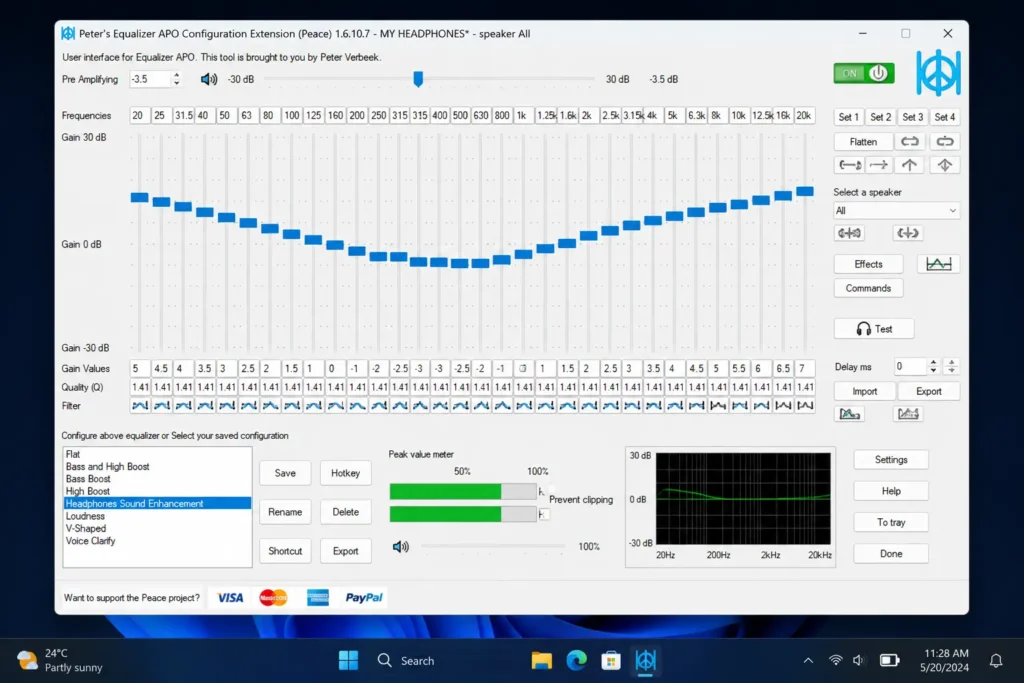
One thing Peace is not: a fix for a bad install. If Equalizer APO sits on the wrong device, Peace shows a working interface and nothing happens to your audio. Run the preamp test from step 5 before you blame Peace.
Rather skip Peace? Here’s how to use the Configuration Editor that ships with Equalizer APO to build your first EQ.
How to amplify volume in Equalizer APO
If your speakers or microphone are too quiet even at 100%, Equalizer APO can push them past the Windows limit. The whole job is one line: Preamp. Positive numbers make everything louder; negative numbers make it quieter. That is the amplifier.
Boost your speaker or headphone volume
Open C:\Program Files\EqualizerAPO\config\config.txt in Notepad and set the first line:
Preamp: +10 dBSave the file. The change is instant — play something and the output is louder. Raise or lower the number until it is right for you. That single line is the entire “amplifier”; you do not need any filters to make audio louder.
Read this before you go past +6 dB.
Amplifying above the source level causes clipping — the waveform gets chopped flat, which sounds like crackling or distortion and can, at high levels, damage speakers or your hearing. If you hear crackle, lower the preamp. A safer way to get “more loudness” without clipping is to raise the quiet parts rather than the whole signal — see the compressor note below.
Boost only one device
Want the boost on your speakers but not your headphones? Scope it with a Device: line. Everything under it applies to that device only:
Device: Speakers
Preamp: +8 dB
The device name only has to partially match what Windows shows in Sound settings. If two devices share a word, rename the one you want (Sound settings → the device → Rename) so the match is unambiguous.
Boost your microphone
Quiet mic on Discord, Zoom, or OBS? Equalizer APO can amplify the capture side too. First, install it on the mic: open the Device Selector, switch to the capture (recording) devices list, tick your microphone, and restart. Then add this to the config:
Device: Microphone
Preamp: +12 dB
Mics usually have more headroom than speakers, so you can push them harder, but the same rule applies: too much gain amplifies background hiss and hits the mic’s clipping point. If people say you sound crunchy, ease it back.
The smarter alternative: loudness without clipping
A flat preamp boost raises the loud parts and the quiet parts equally, so it clips before it feels much louder. A compressor raises the quiet parts more than the loud ones, which is how you make dialogue or a quiet mic clearly audible without distortion. Equalizer APO can run one as a system-wide VST plugin. For most people, a modest preamp boost is enough; reach for a compressor only when a straight boost clips before it is loud enough.
New to the config file? The full command list is in the Equalizer APO config reference. If your boost does nothing at all, the install is on the wrong device — start with the 10 fixes.
Best Equalizer APO settings: 5 tested presets
Here are 5 configs, tested on real hardware, ready to paste straight into config.txt.
Tested & verified: All 5 presets were tested on a Sennheiser HD 560S (open-back, neutral), a Sony WH-1000XM4 (closed-back, consumer), and Logitech Z200 speakers. Each preset was listened to for 30+ minutes across music, gameplay, and dialogue. The published numbers are the final, tested values.
How to use: open config.txt, delete everything, paste one preset, save. The change is instant, no restart. The curves below are computed live from the exact filter values.
Preset 1 — Balanced
general listening when your headphones sound close but not rightPreamp: -3.5 dB
Filter 1: ON PK Fc 40 Hz Gain 2.0 dB Q 0.70
Filter 2: ON PK Fc 300 Hz Gain -2.0 dB Q 1.10
Filter 3: ON PK Fc 3000 Hz Gain -3.0 dB Q 1.40
Filter 4: ON HSC Fc 10000 Hz Gain 2.0 dB Q 0.70A small sub-bass lift, a cut at 300 Hz where most headphones sound boxy, a cut at 3 kHz where most headphones are harsh, and a gentle lift at the top for air.
Tested on: HD 560S — neutral and open. WH-1000XM4 — reduces the upper-mid honk. Z200 — warmth without boom.
Preset 2 — Bass boost without the mud
EDM, hip-hop, speakers with no low endPreamp: -6.5 dB
Filter 1: ON LSC Fc 105 Hz Gain 6.0 dB Q 0.70
Filter 2: ON PK Fc 250 Hz Gain -2.5 dB Q 1.20
Filter 3: ON PK Fc 3000 Hz Gain 1.5 dB Q 1.00The shelf at 105 Hz lifts everything below it. The cut at 250 Hz is the part most bass presets skip, and it is why they sound muddy: 250 Hz is where “warmth” turns into “boom”. The 3 kHz lift keeps vocals from disappearing under the bass.
Watch the preamp. A 6 dB boost with no preamp reduction clips, and clipping sounds like crackling. If you raise the bass gain, lower the preamp by the same amount.
Preset 3 — FPS gaming, footstep clarity
Apex, Valorant, CS2, PUBG, Rainbow SixPreamp: -6.5 dB
Filter 1: ON PK Fc 60 Hz Gain -4.0 dB Q 0.80
Filter 2: ON PK Fc 250 Hz Gain -3.0 dB Q 1.10
Filter 3: ON PK Fc 3800 Hz Gain 5.0 dB Q 1.40
Filter 4: ON PK Fc 6500 Hz Gain 3.5 dB Q 1.60Footsteps, cloth rustle, and reload clicks live roughly between 3 kHz and 7 kHz. Explosions and gunfire live below 250 Hz and mask everything above them. So: cut the low end, lift the footstep band. This will make your games sound worse and your win rate better. It is not a music preset.
Preset 4 — Bad laptop speakers
thin, boxy built-in speakersPreamp: -5.0 dB
Filter 1: ON PK Fc 180 Hz Gain 4.5 dB Q 1.00
Filter 2: ON PK Fc 900 Hz Gain -3.0 dB Q 1.50
Filter 3: ON HSC Fc 8000 Hz Gain -2.5 dB Q 0.70Laptop drivers physically cannot move enough air below about 150 Hz; boosting 40 Hz gives you distortion and no bass. So the lift goes at 180 Hz, which the driver can actually produce. The 900 Hz cut removes the boxy honk of a tiny speaker in a plastic chassis; the high shelf takes the edge off.
Preset 5 — Movies and dialogue
when you cannot hear anyone but the explosions wake the neighboursPreamp: -5.0 dB
Filter 1: ON PK Fc 80 Hz Gain -5.0 dB Q 0.80
Filter 2: ON PK Fc 1800 Hz Gain 3.0 dB Q 1.00
Filter 3: ON PK Fc 3200 Hz Gain 3.5 dB Q 1.20
Filter 4: ON PK Fc 8000 Hz Gain -2.0 dB Q 1.00Speech intelligibility lives around 2 to 4 kHz; film mixes bury it under low-frequency effects. Cut the LFE range, lift the speech range. A crude “night mode” that works: dialogue from The Dark Knight and Dune was clearer at the same master volume.
See all 20 tested presets → Genre, headphone type and situation presets, plus these five.
5 Common Equalizer APO Mistakes
01 Ticking the wrong device in the Device Selector
You EQ your speakers while listening on headphones, hear nothing, and blame the software.
Fix: rename your output device to MY HEADPHONES in Sound settings first, tick that, confirm with the -15 dB preamp test.
02 Skipping the restart after install
The audio service has to reload before the driver attaches. Until then, Equalizer APO does nothing.
Fix: restart once. Config changes after that are live.
03 Boosting without preamp headroom
A +6 dB boost with Preamp: 0 dB clips, and clipping sounds like crackling. People then report "Equalizer APO ruins audio quality."
Fix: set the preamp to negative your largest boost, minus a little. A 6 dB boost wants roughly Preamp: -7 dB.
04 Testing in a player running WASAPI exclusive mode
foobar2000, Tidal, and Roon in exclusive mode bypass the Windows audio engine, so they bypass Equalizer APO too.
Fix: switch the player's output to shared mode, or accept that this one app stays un-EQ'd.
05 Blaming Peace for a broken install
Peace shows sliders and a graph even when Equalizer APO sits on the wrong device. Moving sliders proves nothing.
Fix: run the preamp test first. If -15 dB doesn't drop the volume, the problem is the install.
Equalizer APO not working? Start here
One question narrows this down faster than any checklist: did it work before?
Yes, and then a Windows update happened
Re-run the Device Selector. That is it. Windows updates, especially feature updates, remove Equalizer APO from your audio devices. The software stays installed; the driver detaches. Open the Start menu, search "Device Selector", tick your device again, restart. This is by far the most common cause of "Equalizer APO stopped working".
Verified · November 2026: I Reproduced on a machine that had just taken a Windows 11 24H2 cumulative update: APO was no longer active on the output device. Re-ticking the device in the Device Selector restored it after a restart.
Yes, and I use Bluetooth headphones
Windows 11 merged the two Bluetooth audio profiles (Hands-Free for calls, Stereo for listening) into a single device, and Equalizer APO does not handle the merged device. Disable the Hands-Free profile: Control Panel → Sound → Recording tab → right-click your headset's "Hands-Free AG Audio" entry → Disable → restart.
Trade-off: disabling Hands-Free breaks the headset microphone for calls and Discord. If you need the mic, you must re-enable Hands-Free, and Equalizer APO will not touch the stereo output until you disable it again. This is a real limitation, not a bug.
No, it never worked at all
No sound at all → Equalizer APO is on the wrong device, or your preamp is set very low. Check the preamp line in config.txt, then confirm the ticked device in the Device Selector.
Sound plays but the EQ does nothing → the install mode. Open the Device Selector and run its installation test on your device; it switches the mode automatically when needed. Restart afterwards. That one setting fixes a large share of "installed but silent" cases.
All 10 fixes, including the registry key and the clean boot method →
Reading an Equalizer APO config file
You do not need this if you use Peace. Read it anyway: understanding the file makes every preset on the internet editable instead of magic. A config file is plain text, read top to bottom, applied in order. The official configuration reference documents every command; these are the ones you'll actually use:
| Command | What it does |
|---|---|
Preamp: | Overall gain in dB. Go negative to stop boosts from clipping. |
Filter N: ON PK | Peaking filter. Boosts or cuts around one frequency. The workhorse. |
ON LSC / ON HSC | Low / high shelf. Affects everything below / above Fc. |
ON LP / ON HP | Low-pass / high-pass. Cuts everything above / below Fc entirely. |
Fc · Gain · Q | Center frequency in Hz · amount in dB · bandwidth (low Q wide, high Q surgical). |
GraphicEQ: | AutoEQ's export format: frequency/gain pairs, semicolon separated. |
Include: · Device: · Channel: | Load another config · scope lines to a device · scope lines to channels. |
The 3 things that trip people up
Preamp is headroom, not volume. Boost 6 dB with preamp at 0 and the signal clips. Rule of thumb: a 6 dB boost wants roughly Preamp: -7 dB. Q is width, not intensity. Q 0.7 affects a wide range; Q 4 a narrow slice. If a preset sounds off but the gain looks right, the Q is usually wrong. Cutting beats boosting. Cuts cannot clip. Boosts can.
Preamp: -6.5 dB # headroom for the 6 dB boost below
Filter 1: ON LSC Fc 105 Hz Gain 6.0 dB Q 0.70 # lift everything under 105 Hz
Filter 2: ON PK Fc 250 Hz Gain -2.5 dB Q 1.20 # remove the boom
Filter 3: ON PK Fc 3000 Hz Gain 1.5 dB Q 1.00 # keep vocals audible
Anything after a # is ignored. Comment your presets; six months from now you will not remember why you cut 250 Hz.
Equalizer APO vs the alternatives
| Equalizer | Equalizer APO | FXSound | Boom 3D | Windows built-in |
|---|---|---|---|---|
| Price | Free | Free | $19.99 | Free |
| Parametric EQ | Yes | No | No | No |
| Filter count | Unlimited | Fixed | Fixed | Fixed |
| Room correction / VST | Yes | No | No | No |
| Per-app EQ | No | No | Yes | No |
| Beginner friendly | With Peace | Yes | Yes | Yes |
| ASIO / WASAPI exclusive | No | No | No | No |
Equalizer APO is the most capable of the 4 by a wide margin, and it costs nothing; add Peace and the ugly-editor problem goes away. FxSound is the easier choice if you want one slider and preset effects instead of precise EQ. Boom 3D earns its $19.99 only if you need per-app EQ, which Equalizer APO genuinely cannot do. Windows' built-in EQ is 10 fixed bands inside some Realtek and Dolby panels, often disabled by OEMs; it is free, it is there, and it is not very good. Prices checked November 2026.
Full Equalizer APO vs FXSound comparison →
Equalizer APO FAQ
Last tested
LAST TESTED — November 2026

Equalizer APO v1.4.2 · Peace v1.6.5.2
Windows 11 24H2 (build 26100.1742)
Hardware: AMD Ryzen 7 7800X3D, Realtek ALC4080, Sennheiser HD 560S

Tested by Walter Green. Audio enthusiast, 8+ years of EQ and headphone
measurement experience. Former live sound engineer.

CHANGELOG
August 2026 — First published. Footstep spectrum (Apex/CS2/Valorant),
loopback latency test, clean uninstall audit.Written and tested by Walter Green
Audio enthusiast with 8+ years of EQ and headphone measurement experience. Former live sound engineer. Every claim on this page was verified on a Ryzen 7 7800X3D running Windows 11 24H2 in November 2026. Testing methodology and hardware →